Posts

How to change the way you teach by someone who is...

Image
How do you change the way you teach? It is a slow process but it is possible. When a new curriculum is implemented how to you integrate it? When a new pedagogy is doing the rounds even if it is a rebranded old idea how do you implement it? Should you adopt every idea?  Goals! What are your goals, both personally and for your class? This question can't be completely be answered until you know your class, your school, your parents. What are your professional goals? After reviewing your personal, professional goals and those of your school community write them down. Mine are: Continual growth and learning for my students and myself Enjoyment of learning and relationships Real life learning for students Academic improvement Research Now you have your goals consider the different pedagogical styles and how they might help you achieve your goals? There are so many pedagogical styles and educational theories. How do you know which one is right? Many of the teachi...
5 resources to integrate technology

Image
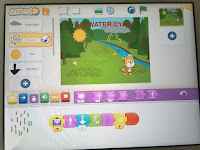
The hardest part of integrating technology is thinking of the project ideas. Here are 5 resources to help with integrating technology and still cover your educational outcomes. Use ScratchJr.com . ScratchJr can be used to create animations to illustrate stories, concepts and create games to demonstrate knowledge. Webinar on teaching algorithms with  Scratch Jr   Use Beebots Beebots can be used to teach simple algorithms and content simultaneously. Algorithms are a series of ordered steps the BEEBOT must follow. Beebots can be used to teach position, left, right, back, forward or a more complicated activity might include grid references (A1 to F8) and cartesian plane or compass directions. The topic of the mat could also mean you are covering money, alphabet, shapes or flash cards used with a clear mat. How to use Beebots video . Micro:bits Micro:bits can be used to address digital technology outcomes specifically or integrated into other areas of study. T...

Using technology to investigate branching

Image
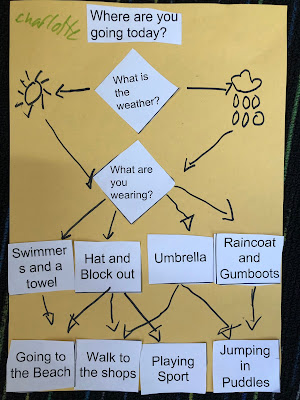
Year 1 have been investigating branching, decisions and flow charts. Lesson 1: Making decisions about what activities to do during whether Investigating branching with paper flowchart shapes. Stick them on a page and use arrows to indicate possible decisions.  Lesson 2: Use Microbits to randomly select Program Microbits to make random decisions.  On Shake  Display randomly the weather Sunny (round image) or Rainy (Umbrella) On Button A pressed Display randomly selected clothing Sunglasses or a jumper On Button B pressed Display randomly selected activities Zoo (Giraffe) or Park (Duck) or House or Beach (Wave) Use the Microbits to write down a new flowchart. Write down what is selected. Discuss crazy combinations the computer selects. Discuss how we can not always trust decisions made by computers.  Have they had any experiences with Siri or Alexa making silly suggestions or saying things that don't make sense. Reinforce tha...

Using On Click - Makey Makey

Image
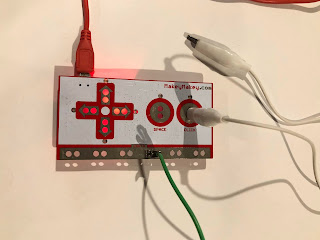
The Makey Makey is a board that replaces the keyboard. It also has mouse functions. If you use the "On Click" function you need to position the mouse over the area on the computer screen you would like to click on. For this project you will need: 2 10x10cm squares of cardboard. Aluminium foil to cover one of the squares. Makey Makey  2 alligator clips USB power cord Sticky tape to attach squares to the floor. They should be taped jumping width apart. Board set-up This project uses the "on click" function to activate an onscreen counter to count the number of jumps. Attach one alligator clip to the on click circle. Attach one alligator clip to the earth. See the steps below to set up the switch. Extension If you need to make the alligator clip longer you can join the clips.  Use tape over the silver connections to make them more secure so the connection is not lost. Screen set-up Open an online counter, this project used  https://coun...

7 books for use in a unit on Plastic

Image
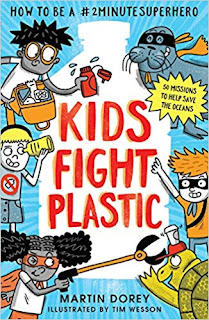
Picture books can be used to enhance a non-fiction unit. These 6 books have applications for units on sustainability and plastic. These picture books open a range of themes and topics that could be expanded on depending on the interests of your students and the inquiry questions to post prior to reading the books. Living things  - impact of human behaviour on ecosystems Sustainability  (general capability) Volume of waste - sustainability of human lifestyles - How do we reduce waste? Material World  - how can materials be used in different ways? What are alternatives to plastics? What is plastic made of? and how is it made? English  - compare and contrast different texts, purpose, audience, method, infographics, pictures, language. Data  - explore facts and figures in the books or that are found online, regarding amounts of plastic, time to decompose infographics. Vocabulary  - degradable, biodegradable, compostable, recyclable, reusable...

Introducing Digital Systems to year 1/2

Image
Year 1 and 2 are required to " Recognise and explore digital systems (hardware and software components) for a purpose ( ACTDIK001 ) "  The Australian Computing Academy has unpacked what this means.  They need to " name digital systems (e.g. smart phone or laptop) that they interact with at home and school and recognise that they are digital systems" they also need to "play (with guidance) and use different systems to explore what they do and how they work. They match digital systems to specific purposes (e.g. using a phone to call a family member)." In NSW the above requirement is contained in the content of Outcome 11 in the Stage 1 Science and Technology Syllabus. ST1-11DI-T identifies the components of digital systems and explores how data is represented The purpose of the lessons below are to recognise and explore components of digital systems. Lesson 1 : Introduction Watch and discuss Read and discuss Hello Ruby, Journey inside a compute...

Using Scratch Jr to create an animation of weather

Image
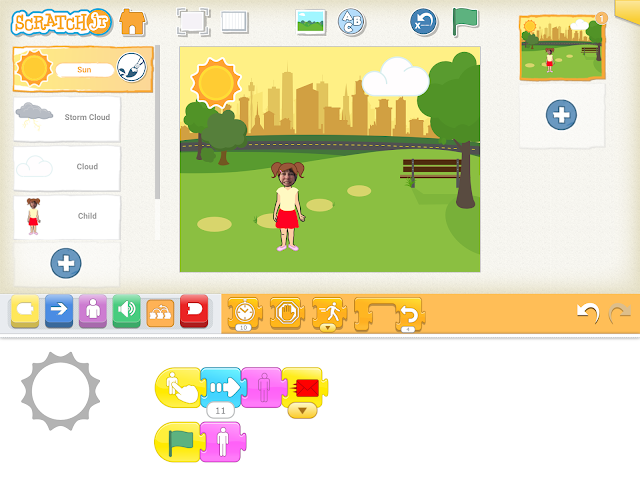
Year 1 students have been learning about weather and how it changes. So we decided to make an animation of  changing weather with Scratch Jr . This style of animation introduces coding concepts to young students and allows conversation about the teaching content in any key learning area. The group had recently had discussed temperature and different types of clouds. Firstly they named the program Changing Weather. Then they added an outside background of their choice. They then added multiple sprites Sun Cloud Storm Cloud A person without a face Adding a face to a sprite Add a sprite with out a face. Tap on the paintbrush. Tap on the camera. Tap on the face. Position the camera to take a photo of your face. Tap the tick. The photo will be inserted as the face of the sprite.  Creating your own sprite Students were required to create their own sprite for the rain. This required them to learn to use drawing tools, line thickness, line colour. Tap ...